

 by Angela V
 If you have a Samsung Frame TV, you already know it’s not just a TV—it’s a piece of art!
But if you’ve browsed the Art Store and realized you don’t want to pay for a subscription, don’t worry.
You can add gorgeous artwork and your own photos to your Frame TV for free!
Here’s how to do it in a few simple steps.
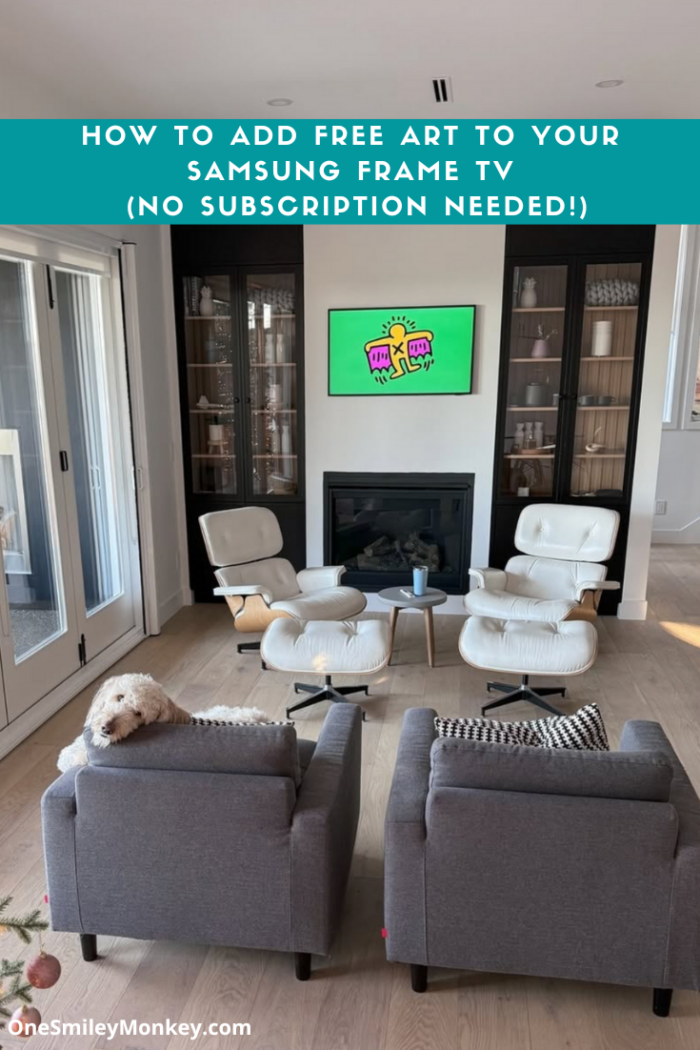
Option 1: Upload Your Own Photos
Want to display family pictures, travel snapshots, or even your kiddo’s latest masterpiece? You can easily upload them to your Frame TV.
Step 1: Get Your Photos Ready
- Choose high-quality images for the best display.
- Resize them to match the Frame TV’s resolution (3840 x 2160 pixels for the best fit, but it will adjust automatically if needed).
- If you want a realistic “matted” look, you can edit your photos to include a white or off-white border before uploading.
Step 2: Transfer Photos to Your TV
- Download the Samsung SmartThings app on your phone.
- Connect your phone and TV to the same Wi-Fi network.
- Open the SmartThings app, select your Frame TV, and tap on Art Mode.
- Choose Add Your Photos and select the images you want to upload.
- Adjust the positioning, add a digital mat (optional), and save!
Now, your beautiful photos are on display, making your TV blend seamlessly into your space. ✨
Option 2: Add Free Artwork (No Subscription Needed!)
If you love the look of classic paintings, modern designs, or trendy prints but don’t want to pay a monthly fee, here’s how to get free artwork.
Step 1: Find Free Art Online
There are tons of websites that offer free, high-quality art downloads, including:
- Unsplash (stunning photography)
- Pexels (free stock images)
- Canva (create your own art!)
- The Met Open Access (classic masterpieces)
Download your favourite images in high resolution for the best display quality.
Step 2: Upload the Art to Your Frame TV
- Just like with personal photos, use the SmartThings app to add the artwork.
- Adjust the settings in Art Mode to enhance the display.
- Play around with different mats and brightness settings to get the perfect look.
Boom! You now have a stunning art gallery without spending any money!
Bonus Samsung Frame TV tips:
- Adjust Brightness – If your TV looks too dim or too bright, tweak the Motion Sensor & Brightness settings in Art Mode.
- Use a Mat – Adding a mat (via the SmartThings app) makes digital art look more like a framed piece.
- Refresh Your Art Regularly – Change things up seasonally or whenever you need a fresh vibe in your space.
Now, go forth and turn your TV into a masterpiece without a subscription!
Happy decorating!






17 Comments on “How to Add Free Art to Your Samsung Frame TV (No Subscription Needed!)”
Thanks for the tips. They are helpful.
I didn’t know this, and I have a Samsung TV. May have to try it out 😄
i absolutely love that there is the option to make your tv an art piece
Great options and I love that you can make it your own
This is so cool! Thank you. Thank you.
This sounds amazing. Not sure how I would go about it though.
Thanks for sharing
That’s so cool
I love that no subscription is neeed
I didn’t know this, thanks!
What a great hack
I like this option because you can refresh your art regularly
I love this, nice work around.
Wow, this is so awesome. Thanks
Very cool. Thanks for sharing
This is so cool, thanks for sharing
thanks for the tips! Love the idea about adding a mat!